



AIKON Article Details | AIKON
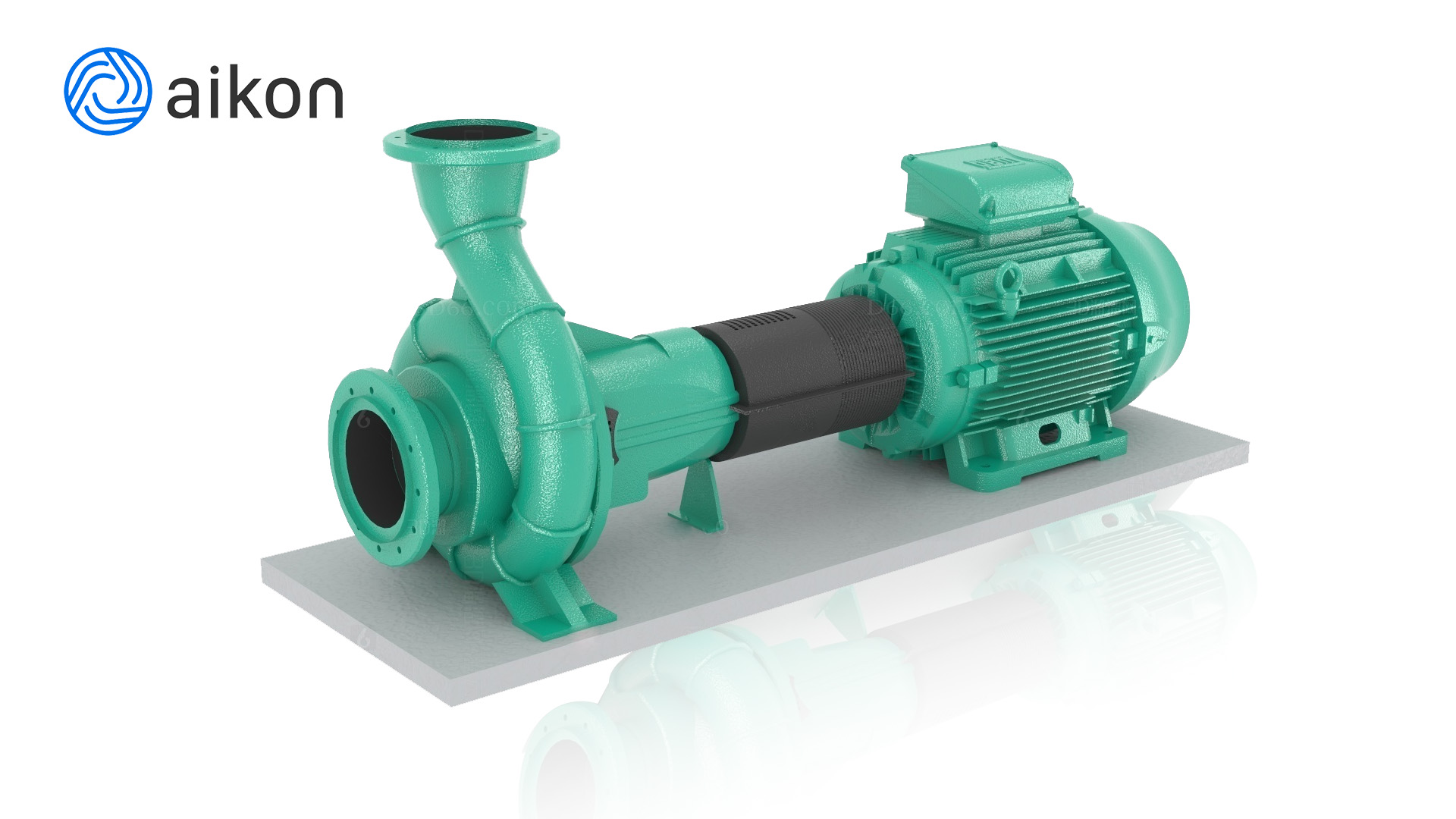
Rapid modeling of Creo 01
2025-01-17 16:59:46
In the engineering design process, creating drawings for a single pump model typically requires a significant amount of time and effort. However, when dealing with multiple sub-models within the same series, repeatedly drawing these models can be highly inefficient. Fortunately, we can utilize the family table feature in CreO software to quickly generate models and drawings for multiple sub-models, significantly improving work efficiency.
Advantages of the Family Table Feature
CreO, as a powerful 3D modeling software, offers significant advantages in dimension drawing and parametric design. Compared to traditional 2D drafting software, CreO not only provides a more intuitive model visualization but also effectively avoids omissions in design. Additionally, CreO boasts robust assembly capabilities and parametric design based on dimensional relationships, making family table modeling possible.
Steps for Family Table Modeling
Create a Base Model
First, create a base model that includes all key features. During the modeling process, label and name critical dimensions (e.g., labeling d34 as H1) based on existing family table information to facilitate subsequent operations.
Create a Family Table
In the "Tools" tab of CreO, locate the "Family Table" feature and create a new table. Add the labeled critical dimensions from the first step to the table, generating a header and a column of data. At this point, the data in the table represents the key parameters of the current model.
Populate the Family Table Data
Export the generated header (using Excel or manual recording) and fill the table with parameter data from other sub-models. Once completed, copy and paste the data back into the family table in CreO. This allows the software to automatically generate models and drawings for multiple sub-models based on the imported dimensions, eliminating the need for repetitive drawing.
Validate and Optimize the Model
To ensure the accuracy of the model, validation and optimization are essential. Locate the "Validate" option in the upper-right corner of the family table feature to check whether the imported dimensions affect model generation. Additionally, save and reopen the file, select a sub-model with significant feature differences (e.g., the largest model) for observation, and manually correct any unreasonable aspects. CreO's "Relations" feature can assist in further optimizing the model.
Summary
Using the family table feature in CreO for series-based modeling and drawing of pumps is an efficient and flexible design approach. By creating a base model and labeling critical dimensions, combined with the family table feature, multiple sub-models and their drawings can be quickly generated. This method not only reduces the workload of repetitive drawing but also ensures design consistency and accuracy. At the same time, through validation functions and manual adjustments, the model can be further optimized to better meet practical requirements. Family table modeling fully leverages CreO's parametric design and assembly advantages, significantly enhancing design efficiency and providing great convenience for subsequent modifications and calls. In conclusion, mastering family table modeling techniques can bring twice the result with half the effort in the design and management of series-based products.